The guide helps AssociationsOnline users manage their user account which includes how to update their personal details, change password and security questions.
Manage my account
- Login to AssociationsOnline. Click on the Manage my access account button on the top right hand corner of your homepage.
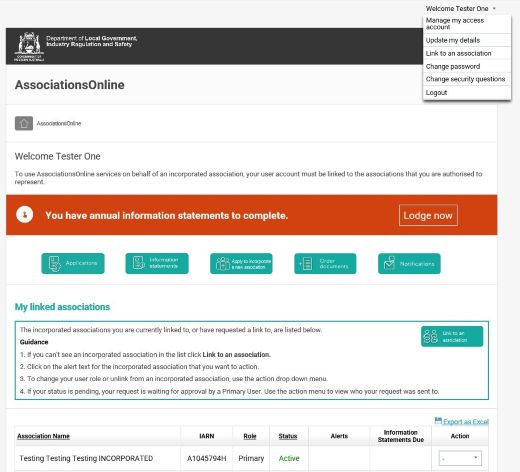
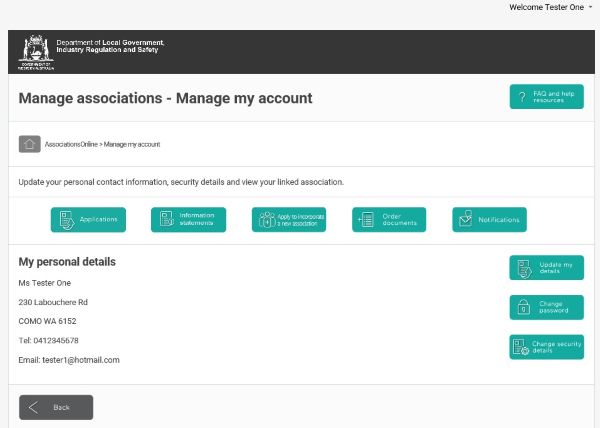
- On the Manage my access account screen you will be able to:
- View your personal details
- Update your details.
- Change your password.
- Change your security details.
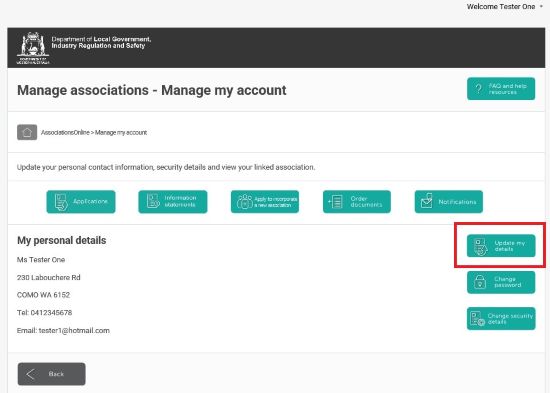
Update my details
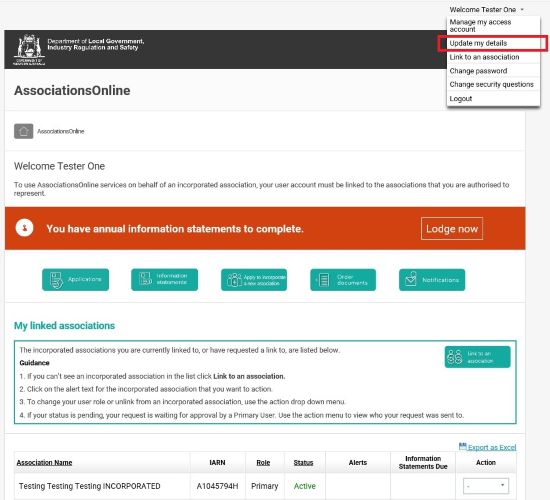
- You can update your contact information from Update my details from the Manage my access account screen. Alternatively, you can select Update my details on the top right hand corner of your homepage.
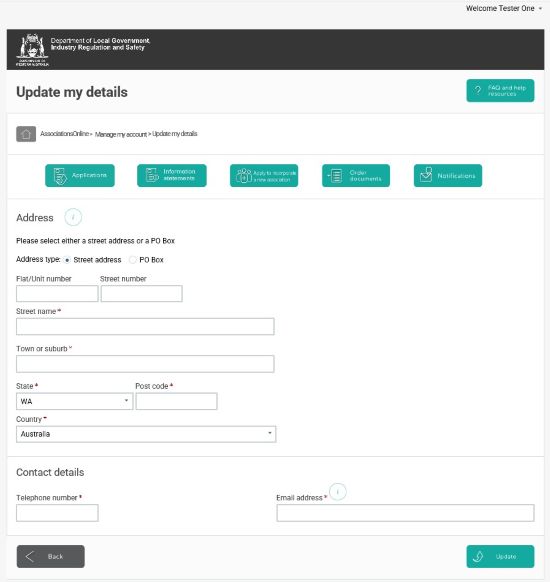
Edit you details:
- You can edit your street address, email and telephone number.
- You must select the Update button on the bottom right to save the changes.
Note: For change of your user account name, you would need to email associations@lgirs.wa.gov.au for assistance.
Change Password
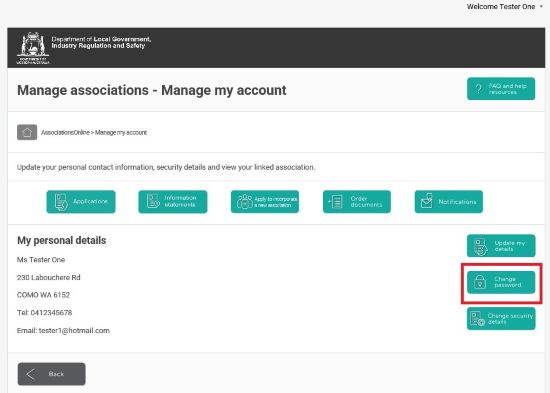
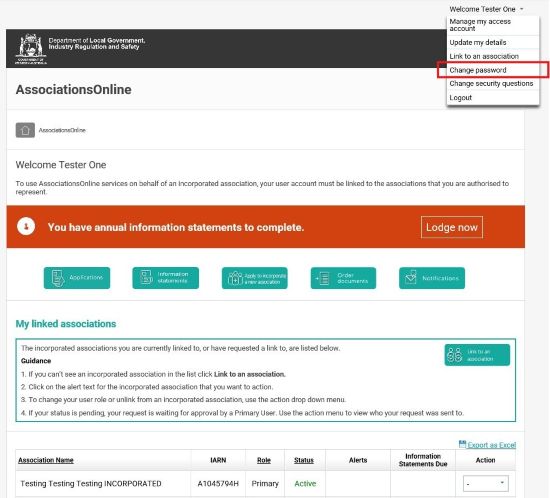
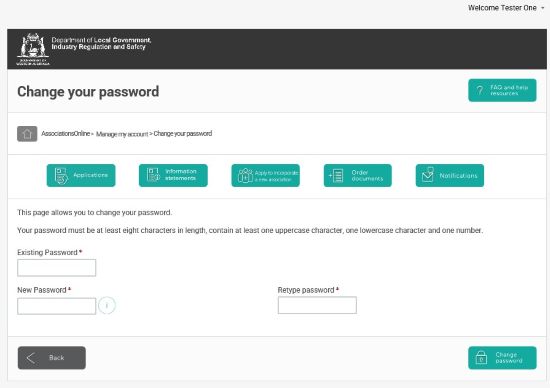
- You can change your password either from Manage my access account screen and select Change Password or by selecting Change Password on the top right hand corner of your homepage.
- Change your password:
- You will need to type in your current password then create a new password in the left box and retype it exactly in the second box on the right.
- Remember passwords must be 8 or more characters in length, and include:
- At least one uppercase and one lowercase letter
- At least one number
- Click the Change password button on the bottom right to save the change.
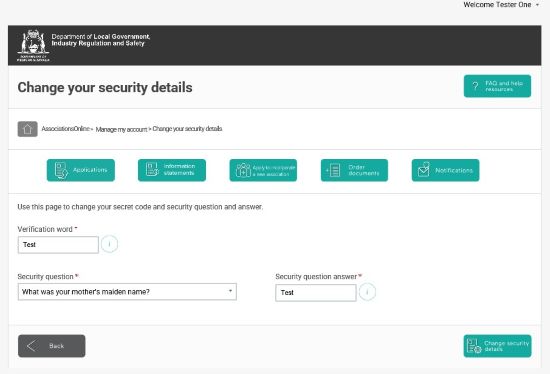
Change my security details
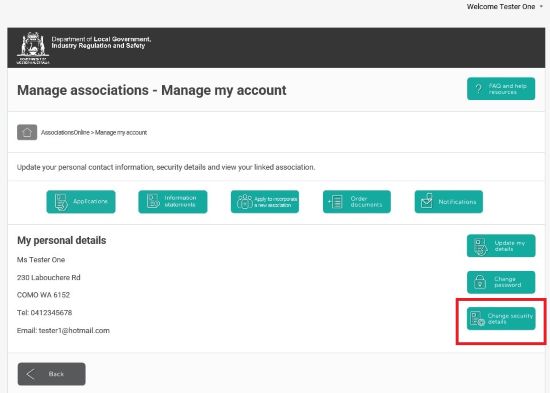
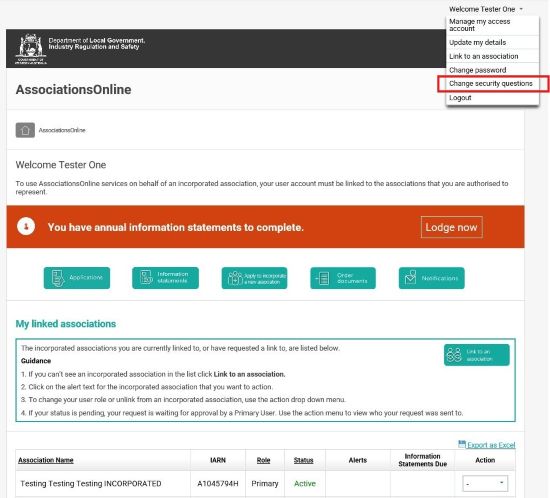
- You can change your security details from Manage my access account screen and then select Change Security Details or by selecting Change Security Questions on the top right hand corner of your homepage.
- Enter or reset the following information:
- verification word (Must be a word - no numbers or symbols are accepted)
- security question and
- security question answer
- You must click on the Change security details button at the bottom right to save the change/s.