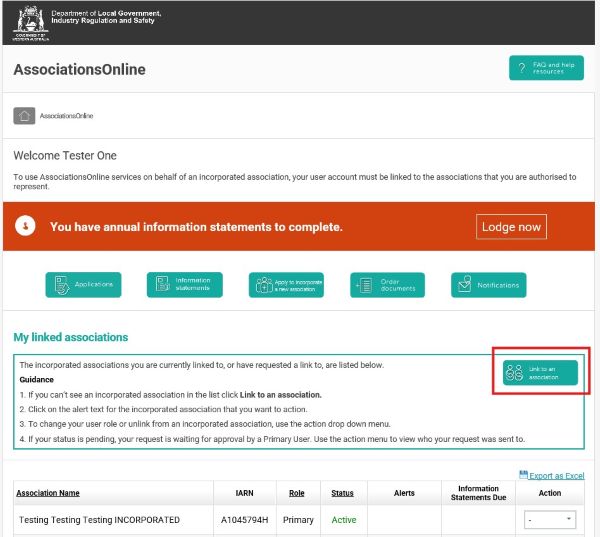
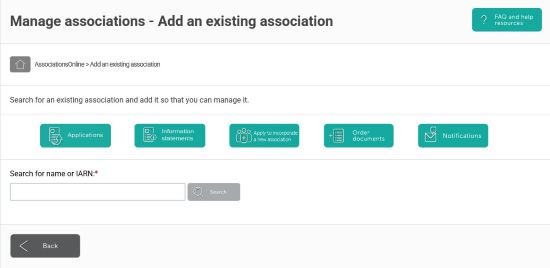
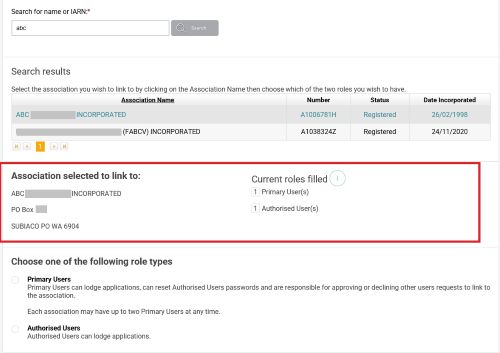
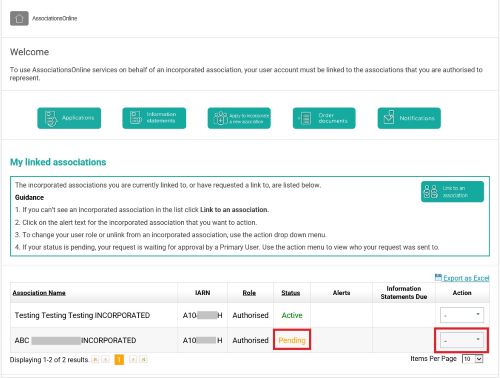
To use AssociationsOnline, each person must create their own user account. You only need to enrol once to create your account. Once your user account is created, you link (connect) your user account to the incorporated association/s that you are authorised to represent and transact on their behalf.
Important: User accounts belong to individuals, not associations or a particular position. Do not share your account with others.
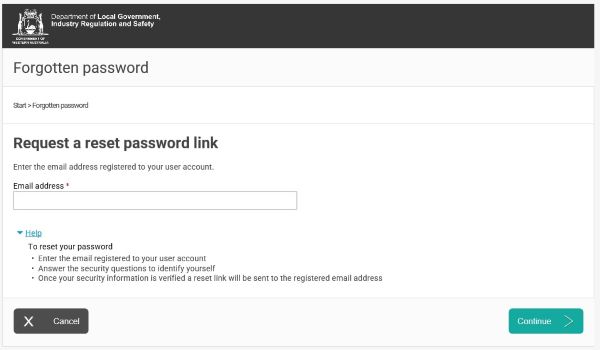
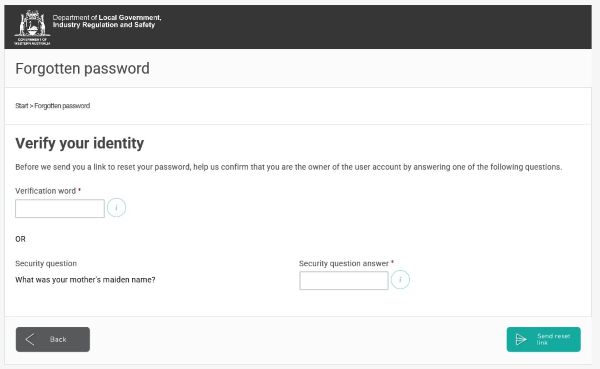
This guide helps AssociationsOnline users to enrol for a user account in AssociationsOnline, how to link to an association and how to reset your password.
Enrol
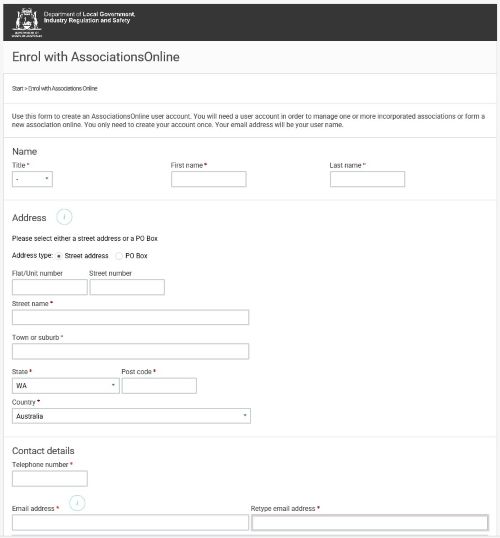
- You can enrol/create an account by clicking the enrol button on the right of the Welcome screen of AssociationsOnline at www.lgirs.wa.gov.au/associationsonline.
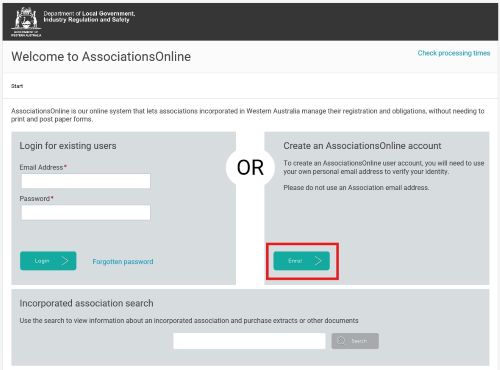
- Fill in your personal details:
- Full name
- Contact address
- Personal email address (used to login with)
- Telephone number
Note: Your user account is used to create your digital identity and sign forms. Use your own details, including your own personal email address. Do not use a shared or generic email that other people can access.
If you see a message that says, “This email address is already in use in AssociationsOnline. Please enter another email address”, it means that there is already a user account with this email address. Please follow the instructions to change your password or continue to enrol with a different email address.
- Set and confirm your password:
- It must be at least 8 characters.
- Include at least one uppercase, one lowercase letter and one number
Choose a verification word and security question and answer
Note: You will need to use these if you forget your password or need to confirm your identity when seeking help.
- Agree to Terms and Conditions:
- Tick the declaration box
- Enter the captcha code (a security check to confirm you are not a robot)
- Click the Enrol button.
- Activate your account
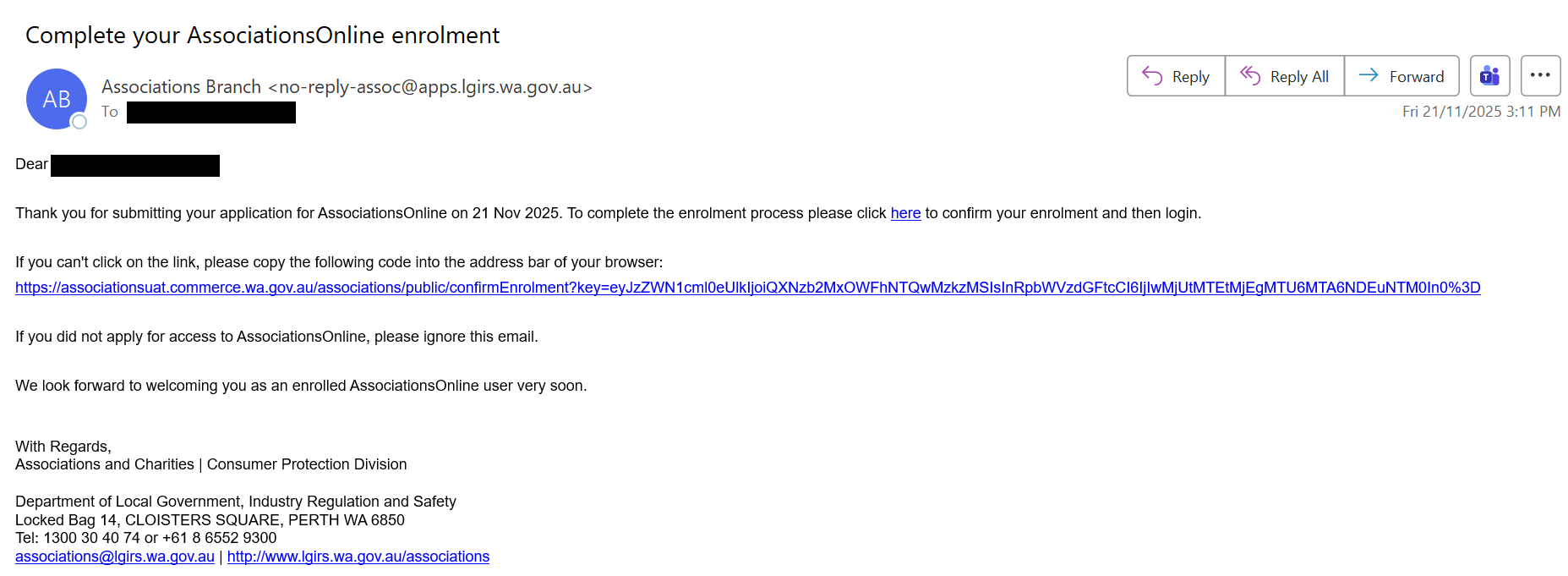
- Check your email for message titled "Complete your AssociationOnline enrolment".
- Click the link in the email to activate your account.
- Confirmation:
- A message will appear confirming your account activation.
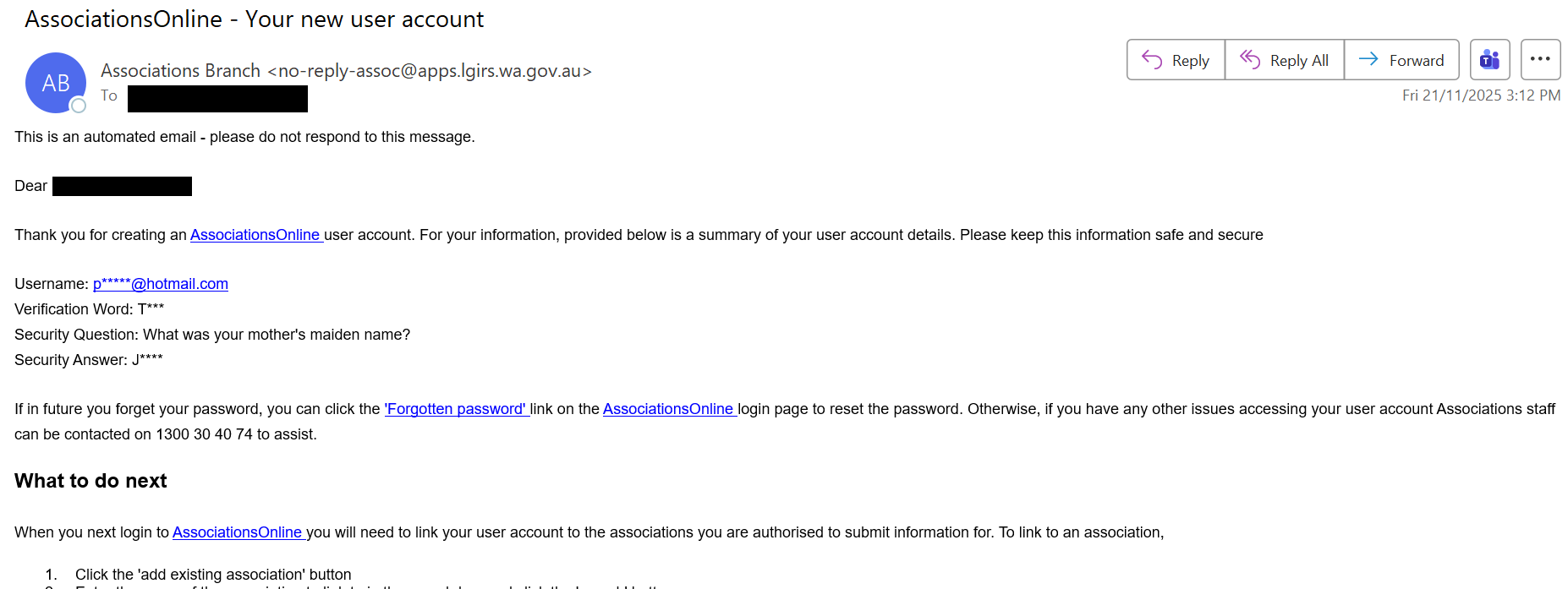
- You will also receive a confirmation email confirming with your account details.